How to take a photo on iPhone without touching it
I’m Burak Taha Pekşen, the developer of GestureCam, which is one of the options in this guide. Every built-in option here is free and works without it.
Six ways to take an iPhone photo without touching the phone, from the built-in timer to Voice Control, AirPods, Apple Watch, and a palm gesture. What each needs, and which one fits your shot.
In this note
The short answer
Set your iPhone on a stable support, then pick a trigger you can use from where you stand. The Camera timer needs nothing extra. Voice Control lets you say the shutter’s name. AirPods and Apple Watch work as remotes. GestureCam starts a countdown when you raise your palm from inside the frame.
The right choice depends on what you have with you and when you want to decide the moment: at the phone, or after you have taken your place in the picture.
Which method needs what?
All six options start the shot without your finger on the screen. They differ in what you need to carry and when the picture is taken.
| Method | What you need | When the photo is taken | Cost |
|---|---|---|---|
| Camera timer | Any iPhone | 3, 5, or 10 seconds after you tap the shutter at the phone | Built in |
| Voice Control | Voice Control set up in Accessibility | When you say the shutter’s name or number | Built in |
| AirPods camera remote | AirPods 4, AirPods 5, AirPods Pro 2, AirPods Pro 3, or AirPods Max 2, and iOS 26 or later | When you press the stem or Digital Crown | Built in |
| Apple Watch Camera Remote | An Apple Watch within about 10 meters (33 feet) | When you tap the shutter on your wrist, with a 3-second timer by default | Built in |
| Smart Take | iPhone Duo | Automatically, when you strike a pose or hold still | Built in |
| GestureCam palm trigger | GestureCam, iOS 18 or later | After you raise your palm from inside the frame and the countdown ends | Free; optional one-time Pro upgrade |
How do I use the iPhone camera timer?
The timer is the simplest option and needs no setup. Its limit is the order: the countdown starts at the phone, so you have to reach your place before it ends.
- Open Camera, set the phone on a stable support, and frame the shot.
- Tap or swipe up from the camera modes at the bottom of the screen, tap Timer, then choose 3, 5, or 10 seconds.
- Tap the shutter button and walk into the frame before the countdown ends.
Can I take a photo on iPhone with my voice?
Yes, with Voice Control, an accessibility feature that lets you tap anything on screen by saying its name. After its one-time download, it works without an internet connection.
Voice Control listens to everything you say while it is on, so turn it off when you have finished taking photos.
- Go to Settings > Accessibility > Voice Control, tap Set Up Voice Control, and follow the onscreen instructions.
- Open Camera and frame the shot. Say “Show names” or “Show numbers” to see what each button is called.
- From your place in the frame, say “Tap” followed by the shutter button’s name, or say its number.
Can AirPods take a photo on iPhone?
With iOS 26 or later and supported AirPods, a press of the stem takes a photo in the Camera app, and starts or stops recording in Video mode. On AirPods Max 2, you press the Digital Crown instead. It is off until you choose a press.
In Photo mode, the Camera app adds a 3-second timer and a tone, so you have a moment to lower your hand. Apple notes this timer is not available in some countries or regions.
- With your AirPods connected, open Settings and tap your AirPods’ name near the top.
- Tap Camera Remote (first tap Controls & Gestures if you do not see it), then choose Press Once or Press and Hold.
- Open Camera, step into the frame, and press the stem.
- Press Once pauses media control gestures while a supported camera app is open.
- Press and Hold pauses listening mode and Siri gestures instead.
How do I use Apple Watch as a camera remote?
Open the Camera Remote app on your Apple Watch. It shows the iPhone’s viewfinder on your wrist, so you can check the framing from where you stand, then tap the shutter button. The shot uses a 3-second timer by default; you can change it, switch cameras, and set the flash and Live Photo from the More Options button.
Touch and hold the shutter button to record video. Stay within normal Bluetooth range of your iPhone, about 10 meters (33 feet).
What is Smart Take on iPhone Duo?
Smart Take is a Camera feature on iPhone Duo. With the phone on a stable surface, you start it, get into the frame, and strike a pose or hold still. iPhone Duo then takes up to 20 photos over a couple of minutes, and the flash blinks each time it takes one.
It is automatic: the phone decides when to shoot. That suits a relaxed group that will hold still. Other iPhone models do not have it.
Smart Take is what inspired GestureCam’s Auto Capture. If you don’t have iPhone Duo, Auto Capture (part of the optional GestureCam Pro upgrade) brings a similar hold-still trigger to iPhones running iOS 18 or later: it takes a photo about a second after everyone in the frame settles, then another every few seconds while you hold the pose.
Take the photo with a palm gesture
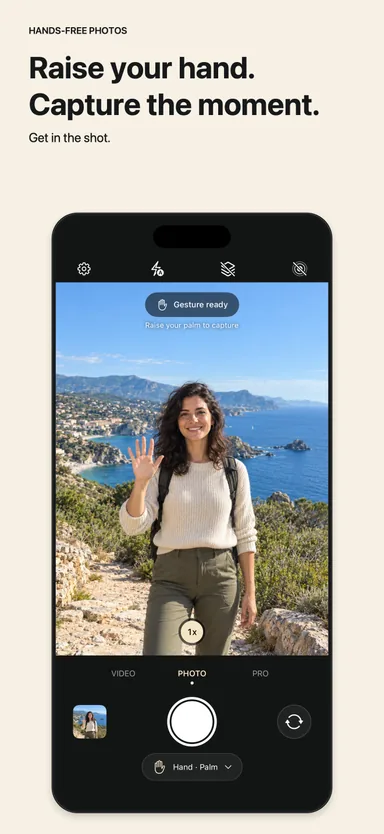
GestureCam is a camera app I made for any iPhone running iOS 18 or later. Frame the shot, take your place, and raise your open palm toward the camera only when everyone is ready. The countdown starts from inside the frame, so nobody rushes, and you need no remote, watch, or earbuds.
Palm-triggered photos, Live Photos, and video are free. The optional one-time Pro upgrade adds voice commands such as “take photo”, a fist or victory sign as other triggers, burst capture, and manual camera controls.
- Open GestureCam, set the phone on a stable support, and frame the picture.
- Step into view, making sure the camera can see your whole hand.
- Raise your open palm, then lower it and settle in before the countdown ends.
Which method should you choose?
Match the trigger to the moment rather than picking one for everything.
- A quick shot with nothing extra: the Camera timer.
- Hands full or limited hand mobility: Voice Control, or GestureCam Pro voice commands.
- Wearing AirPods or an Apple Watch: the remote you already have on you.
- Need to check the framing from a distance: Apple Watch, which shows the viewfinder.
- A group that needs time to settle: a palm gesture, so the countdown starts once everyone is ready.
- Recording a toast, a song, or a workout: AirPods, Apple Watch, or a palm gesture to start the video.
Tips for any no-touch photo
Put the phone at about chest to eye height, on a tripod or something that will not slide. Use the rear camera when you are several steps away. Turn faces toward the light rather than standing in front of a bright window.
Take two or three shots before you move the phone. Someone usually blinks, and a second picture costs nothing.
Sources & app details
App details checked on Nov 1, 2026. Features, compatibility, and purchase options can change; check the current listings.
GestureCam
Take hands-free photos with a palm gesture.
Explore app